

Notification examples
v1.4Updated Oct 6, 2026
This guide shows example notification emails, sample subject lines, and when each message is sent so you can decide which ones your customers should receive from NEXT. New stores start with customer notifications turned off, so NEXT sends your customers almost no order, refund, or subscription emails until you turn those notifications on. The few exceptions are listed under Turn on the notifications you want.
What this page shows
Purpose
Coverage
How to use these examples
Using these examples
Each example shows what a notification is for, when it is sent, and what your customer will see in the email.
- Use Trigger to see when each email goes out.
- Use Example subject to recognize the message when you test your store.
- Use What the customer sees when you review your brand or which emails you send.
- Use the full reference table below for every template name, category, and a sample subject line.
- Where you see a screenshot, click the image (or use View larger) to open a full-size preview. Press Escape or click outside to close.
Turn on the notifications you want
Customer notifications start off
Stores created from September 17, 2026 start with customer order, refund, subscription, and support notifications disabled. NEXT won't send those emails until you enable them, apart from the exceptions listed below this callout. Two notifications stay Active: Email Changed, a security notice sent to a customer's old address when their account email changes, and the Admin Order Notification, which goes to your team. If your store was created earlier, your notification settings have not changed.
- Before you enable anything, go to Settings → Domains and verify an Email Sending Domain. Without it, emails may be rejected or land in spam.
- Go to Settings → Notifications. Under Notification Settings, enter the Default From Address. Add an Admin Order Notification Email if your team wants an alert for each new order.
- In the Notifications table, each template shows its status. Click Enable next to each notification you want NEXT to send, and leave the others disabled.
- Reload the page and confirm that the notifications you enabled now show as Active.
Leave Email Changed Active. It warns customers when someone changes the email on their account and includes a password reset link in case the change wasn't theirs.
A few emails are not controlled by this table. The Order Invoiced email is sent whenever an order is invoiced, even if the template shows as disabled, and gift card emails are always sent to the recipient. Resending an email from an order or subscription page in the dashboard also sends it regardless of the template's status.
If your store sells subscriptions, enable the Subscription Renewal, Subscription Update Payment, and Subscription Canceled notifications. Then go to Settings → Subscriptions and check Upcoming Renewal Notifications: choose which renewals customers hear about and how many days in advance. That setting decides when renewal reminders go out, but nothing is sent while the Subscription Renewal Notification is disabled.
Decide whether Shopify or NEXT sends each email
If you use Shop Sync, Shopify may already email your customers. Pick one sender for each message so customers never get the same email twice.
| Who should send it | |
|---|---|
| Order confirmation, shipping, and delivery updates | One platform only. If Shopify already sends these, leave the matching NEXT notifications disabled. If you want NEXT to send them, enable them in NEXT and leave "Send Order Confirmation Emails from Shopify" disabled in Apps → Shop Sync. That setting covers the order confirmation only, so also check your Shopify notification settings and make sure Shopify won't send its own shipping or delivery email for the same orders. Regular Shopify orders are not affected by the Shop Sync setting. |
| Refunds | NEXT. Enable the Refund Notification. When you refund a Shop Sync order in Shopify, untick the option on the refund screen that emails the customer, so the customer gets one refund email. |
| Subscription renewals, payment updates, and cancellations | NEXT. Subscriptions are managed in NEXT and are not fully represented in Shopify. Enable all three subscription notifications if you sell subscriptions. |
| Stores without Shopify | NEXT. Enable each notification your customers should receive. |
The Shop Sync guide covers the order confirmation choice in more detail.
Test delivery before launch
Run these steps with test payments, not a live card, so no real charge, refund, or shipment happens. Ask your account team if you're not sure how test payments are set up on your store.
- Place a test order through your checkout using an email inbox you can check.
- Confirm the order confirmation arrives exactly once, from the platform you chose. If nothing arrives and NEXT is the sender, check that the notification shows as Active and that your sending domain is verified. If Shopify is the sender, check that "Send Order Confirmation Emails from Shopify" is enabled in Apps → Shop Sync and review the notification settings in Shopify.
- Fulfill the test order and confirm the shipping emails you enabled arrive, and only those.
- Refund the test order and confirm the refund email arrives if you enabled it.
- If you sell subscriptions, create a test subscription and confirm the renewal reminder settings match what you chose.
Order notifications
These notifications support the order lifecycle from checkout through delivery, returns, and refunds.
Order Confirmation
Order · Sent as soon as checkout is completed successfully.
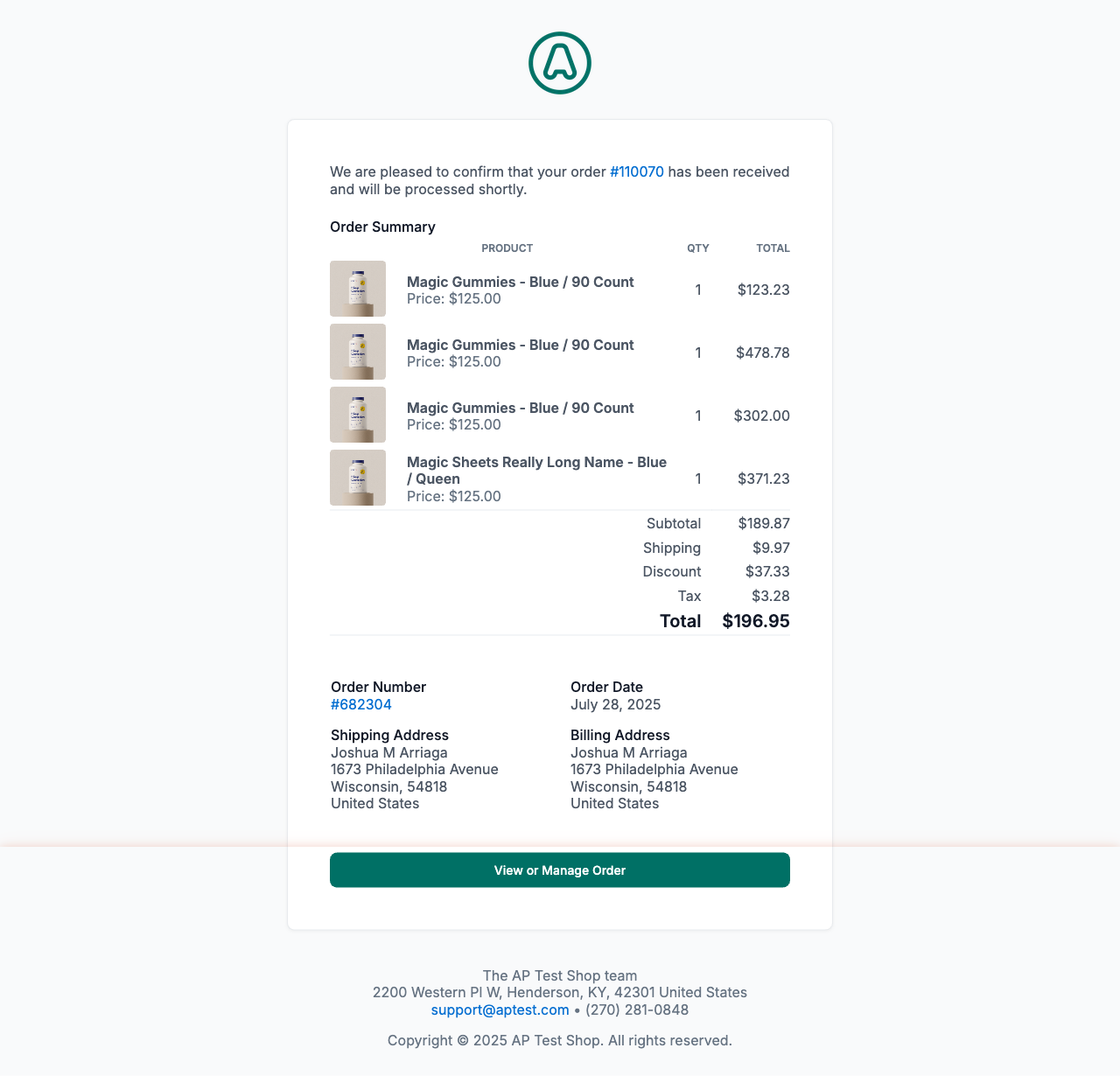
Example from a demo store. Your logo, copy, and line items follow your theme and catalog.
- Trigger: Customer completes checkout.
- Example subject: Your order #NC-10042 is confirmed!
- What the customer sees: Order number, item summary, totals, billing and shipping details, and confirmation that the order was received.
Complete Order
Order · Sent when the order has been fully processed and completed.
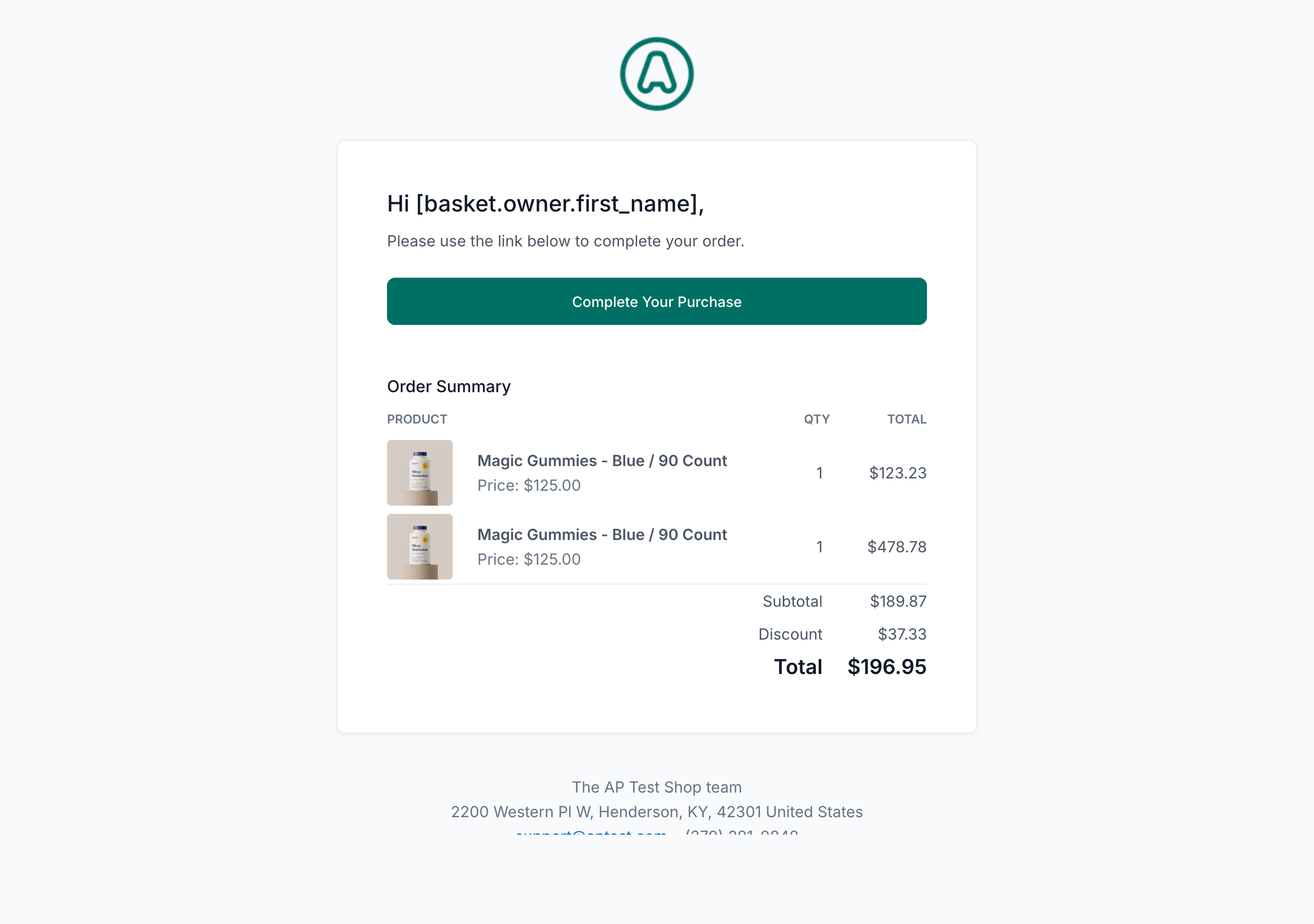
Example from a demo store. Your logo, copy, and line items follow your theme and catalog.
- Trigger: Order is marked complete.
- Example subject: Your order #NC-10042 has been processed
- What the customer sees: Confirmation that order processing is complete, with order context and reassurance that fulfillment is moving forward.
Order Shipped
Order · Sent when fulfillment is completed and tracking is available.
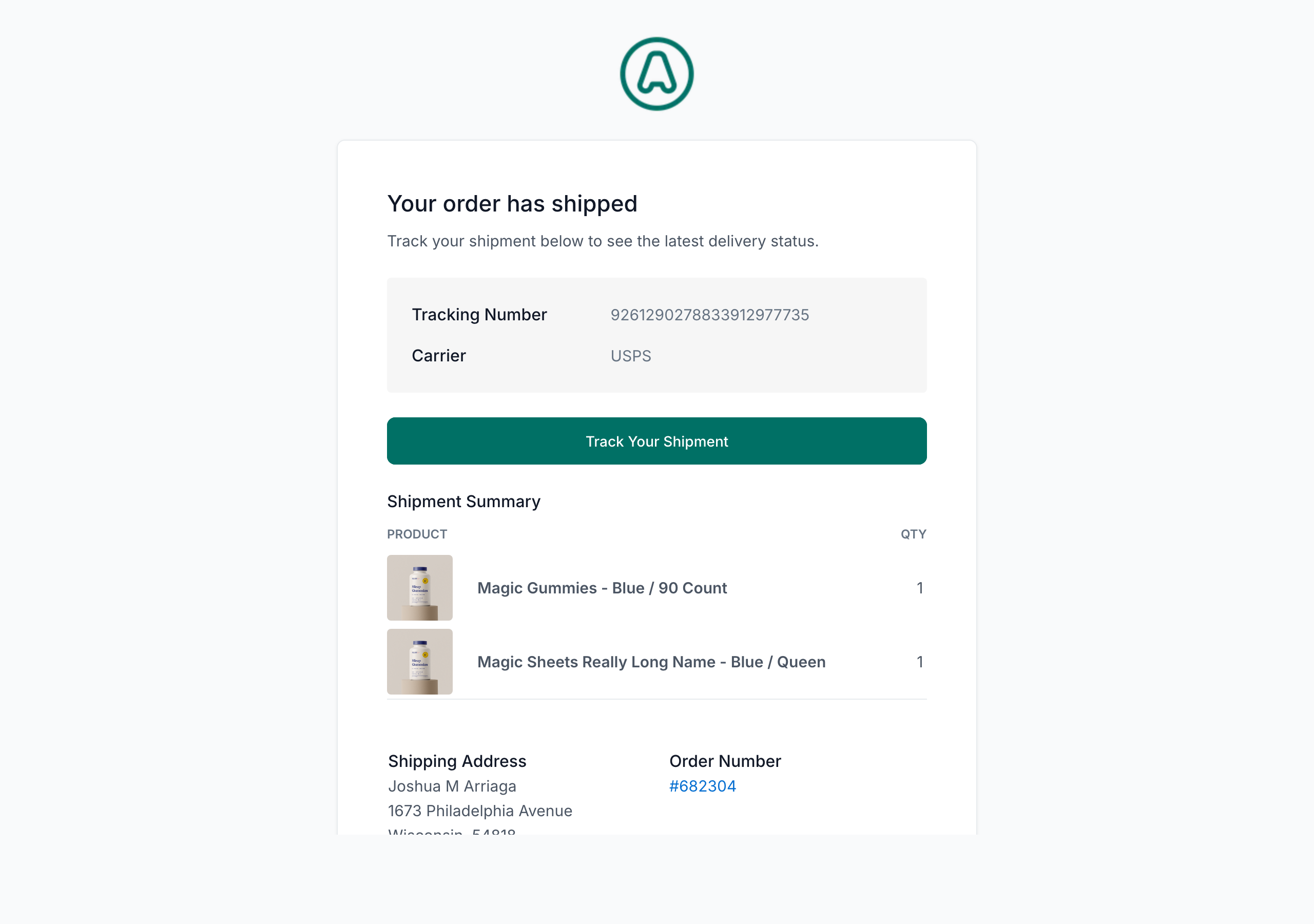
Example from a demo store. Your logo, copy, and line items follow your theme and catalog.
- Trigger: Order ships with tracking information.
- Example subject: Your order has shipped! Track: 1Z999AA10...
- What the customer sees: Shipment confirmation, tracking number, carrier details, and a reminder of what is on the way.
Order Out For Delivery Notification
Order · Sent on the day the carrier expects to deliver the package.
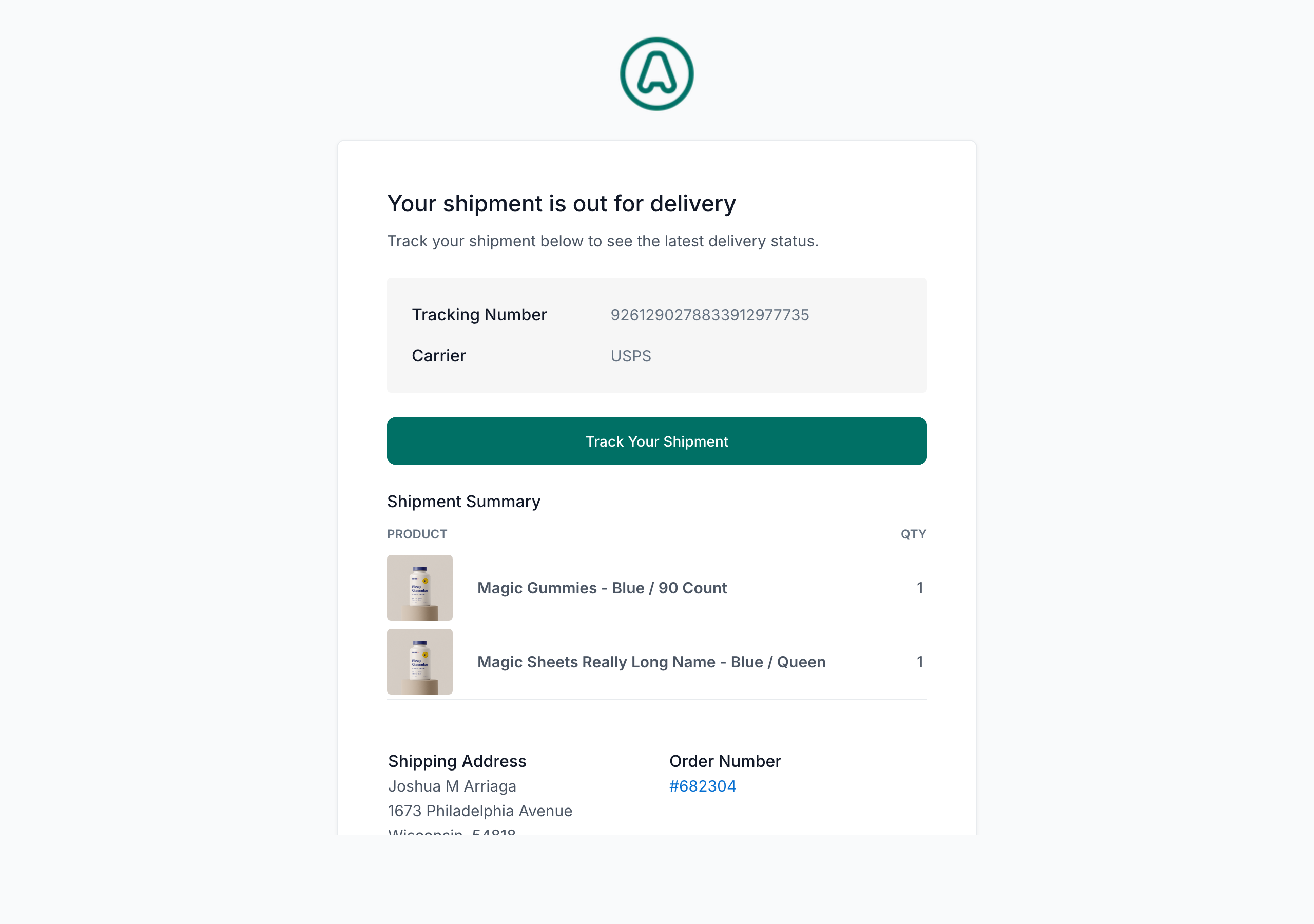
Example from a demo store. Your logo, copy, and line items follow your theme and catalog.
- Trigger: Package is marked out for delivery.
- Example subject: Your package is out for delivery today
- What the customer sees: A same-day delivery update that sets arrival expectations and helps reduce delivery-related support questions.
Order Delivered Notification
Order · Sent after the carrier marks the shipment as delivered.
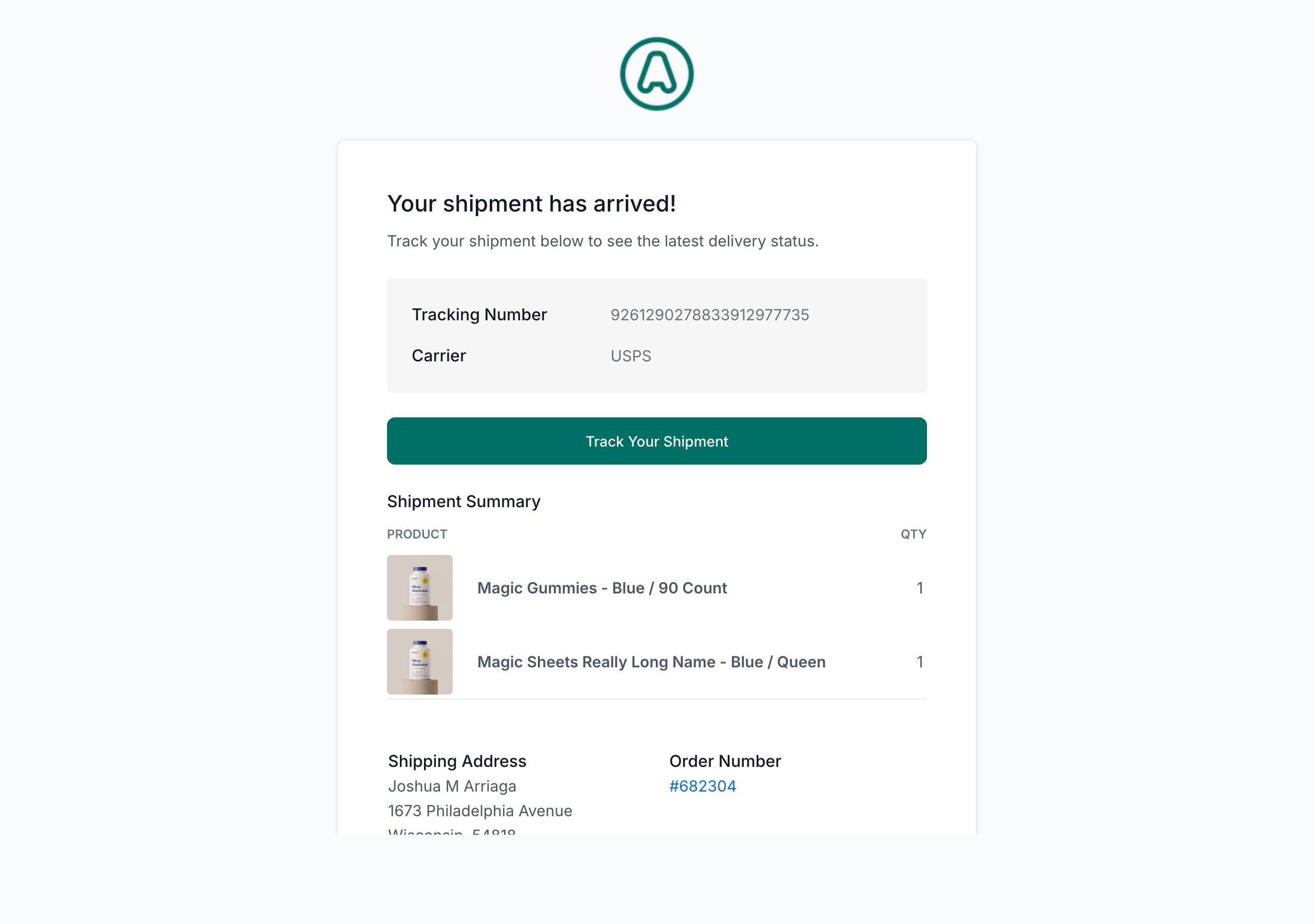
Example from a demo store. Your logo, copy, and line items follow your theme and catalog.
- Trigger: Package delivery event is received.
- Example subject: Your package has been delivered!
- What the customer sees: Delivery confirmation, a recap of the order, and a final touchpoint that can reduce "where is my order?" support contacts.
Return Instruction Notification
Order · Sent after a return process has been started.
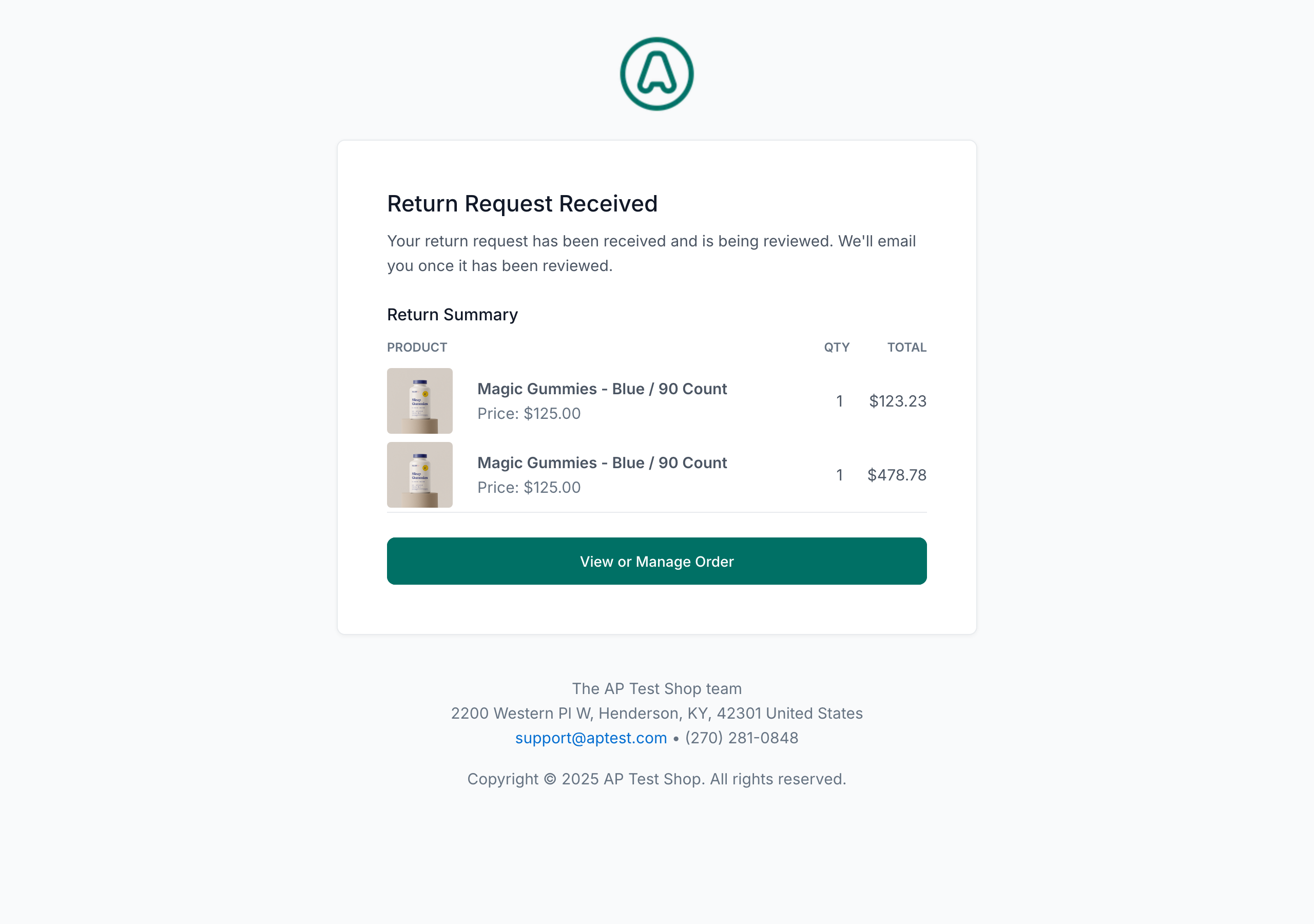
Example from a demo store. Your logo, copy, and line items follow your theme and catalog.
- Trigger: Return is initiated.
- Example subject: Return instructions for order #NC-10042
- What the customer sees: Instructions for the return, shipping or label details, and guidance on what happens next.
Refund Notification
Order · Sent when a refund has been issued.
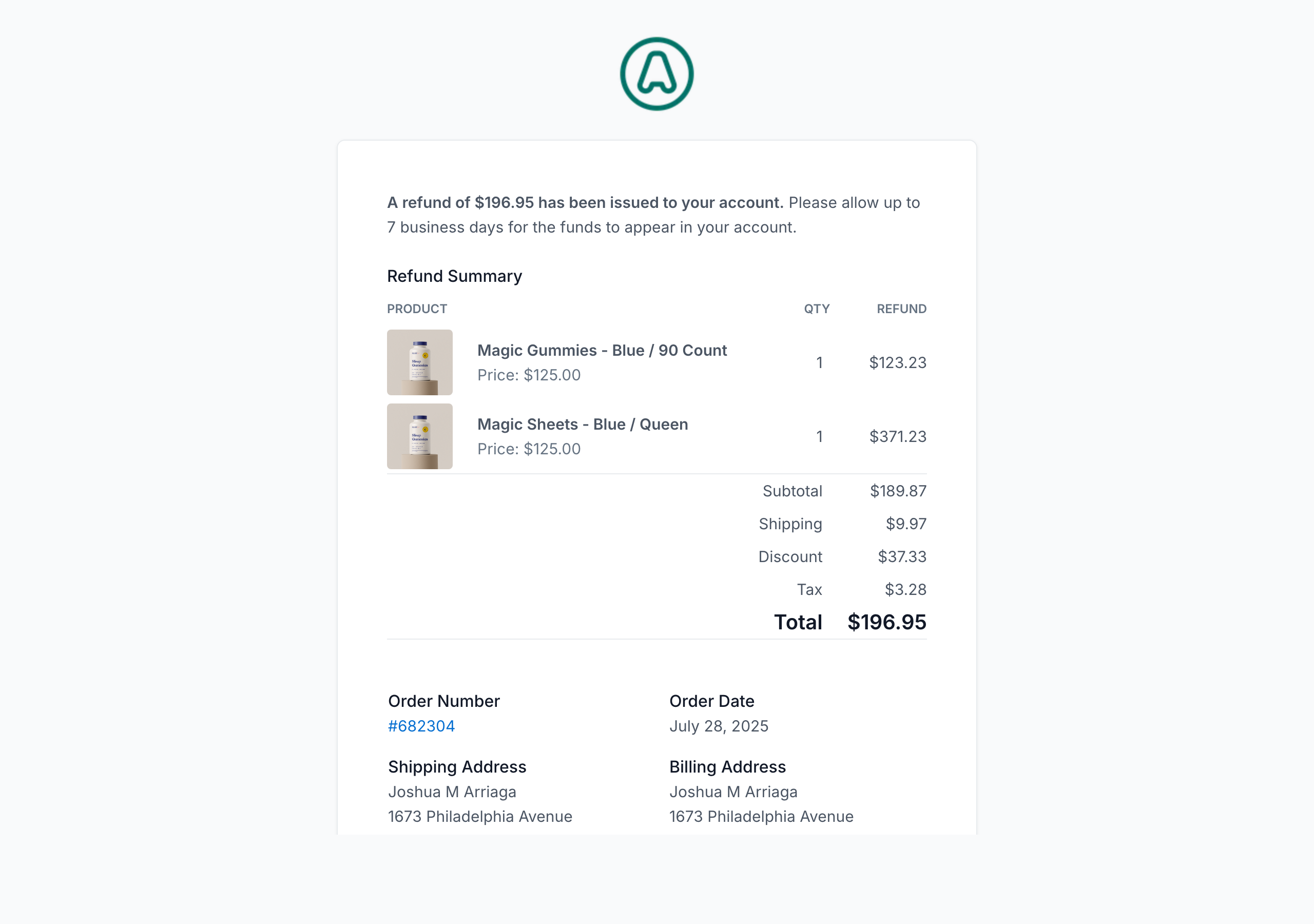
Example from a demo store. Your logo, copy, and line items follow your theme and catalog.
- Trigger: Refund is processed on the order.
- Example subject: Your refund of $120.44 has been processed
- What the customer sees: Refund amount, payment method, and a general expectation for when funds should appear back on the original payment source.
Order Canceled
Order · Sent if an order is canceled before fulfillment is complete.
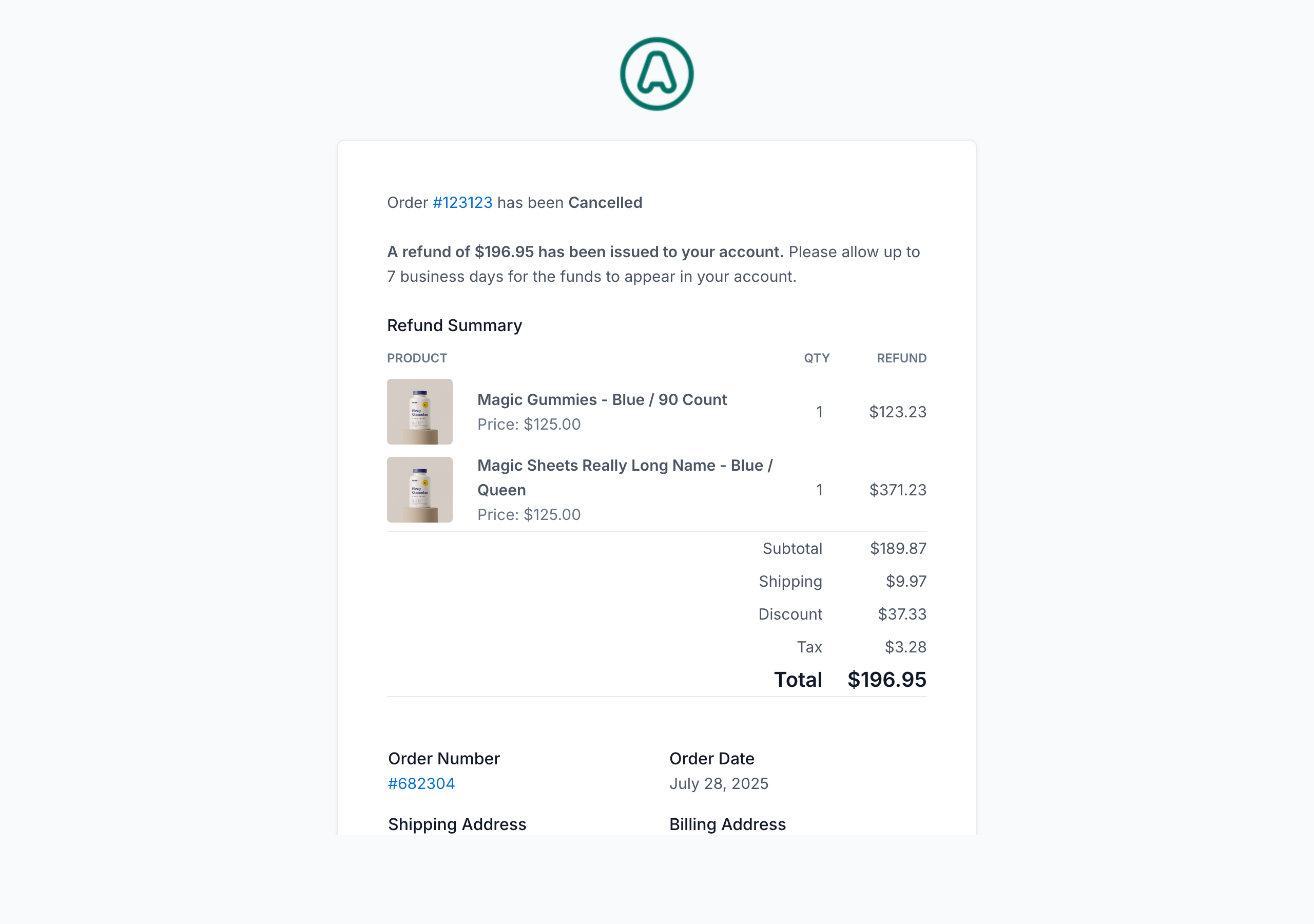
Example from a demo store. Your logo, copy, and line items follow your theme and catalog.
- Trigger: Order is canceled.
- Example subject: Your order #NC-10042 has been canceled
- What the customer sees: Canceled order details plus next-step information, typically including payment or refund context when relevant.
Subscription notifications
These emails are especially important because subscription lifecycle events live in NEXT and may not be visible in external systems.
Subscription Renewal
Subscription · Sent around the renewal moment to confirm the next recurring order.
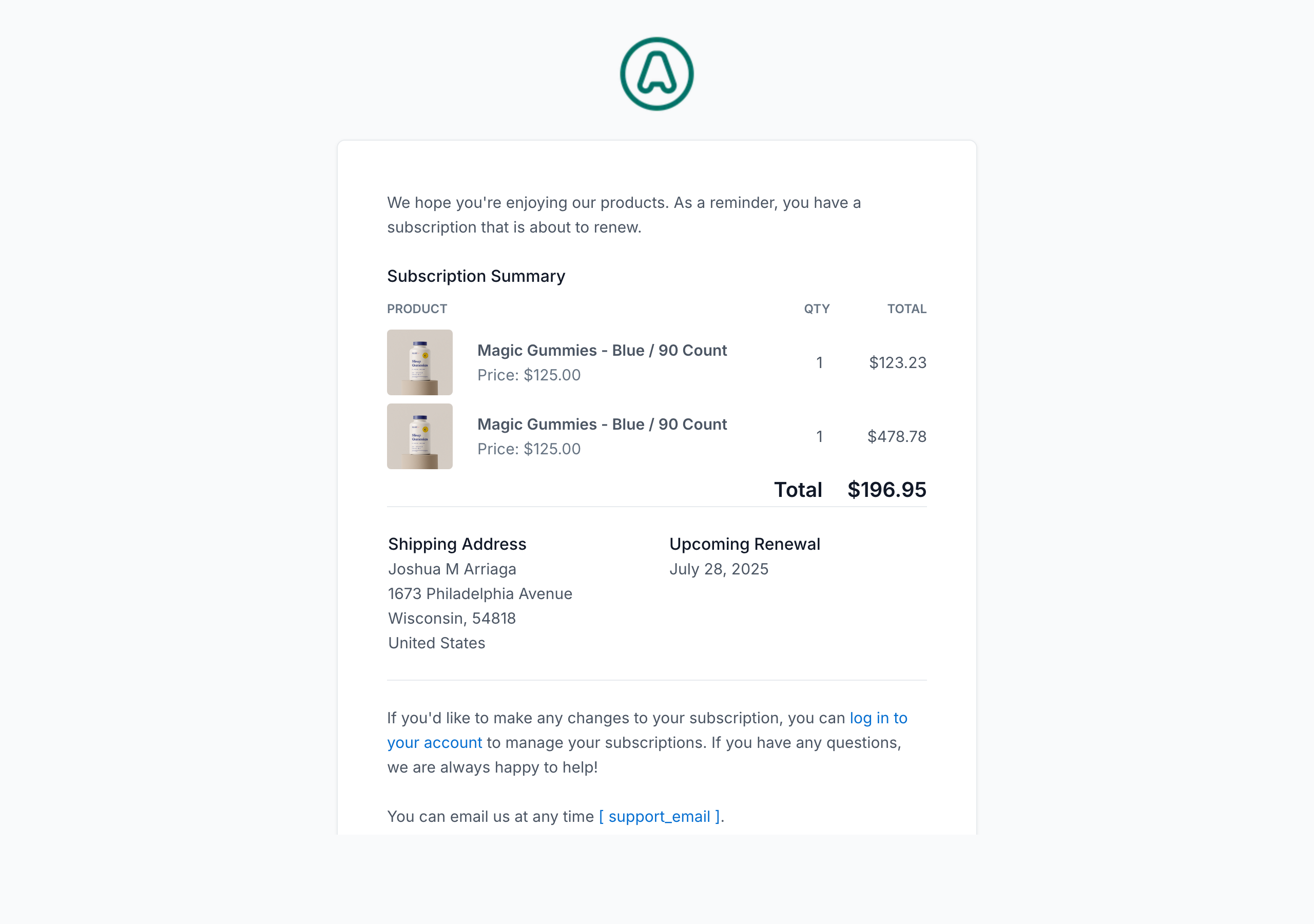
Example from a demo store. Your logo, copy, and line items follow your theme and catalog.
- Trigger: Subscription renewal is upcoming or has just processed, depending on merchant setup.
- Example subject: Your subscription order is renewing soon
- What the customer sees: Renewal date, billing amount, subscribed items, and a reminder that the upcoming order is tied to their subscription.
Subscription Update Payment
Subscription · Sent when a customer needs to update payment information for an active subscription.
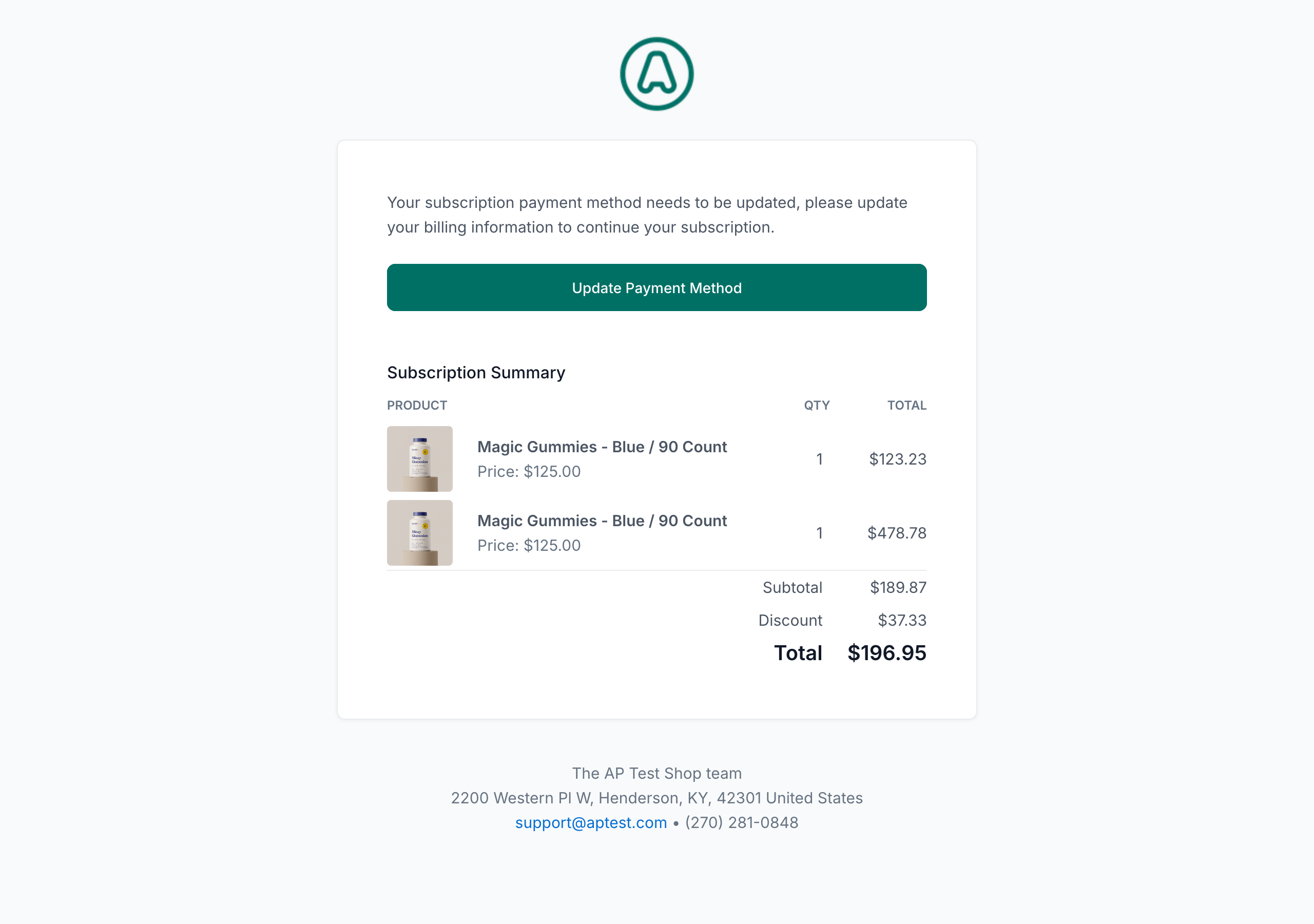
Example from a demo store. Your logo, copy, and line items follow your theme and catalog.
- Trigger: Payment method update is required.
- Example subject: Update your payment method for your subscription
- What the customer sees: A billing action prompt, clear context on why the update is needed, and a direct path to resolve the issue.
Subscription Canceled
Subscription · Sent when a subscription has been canceled.
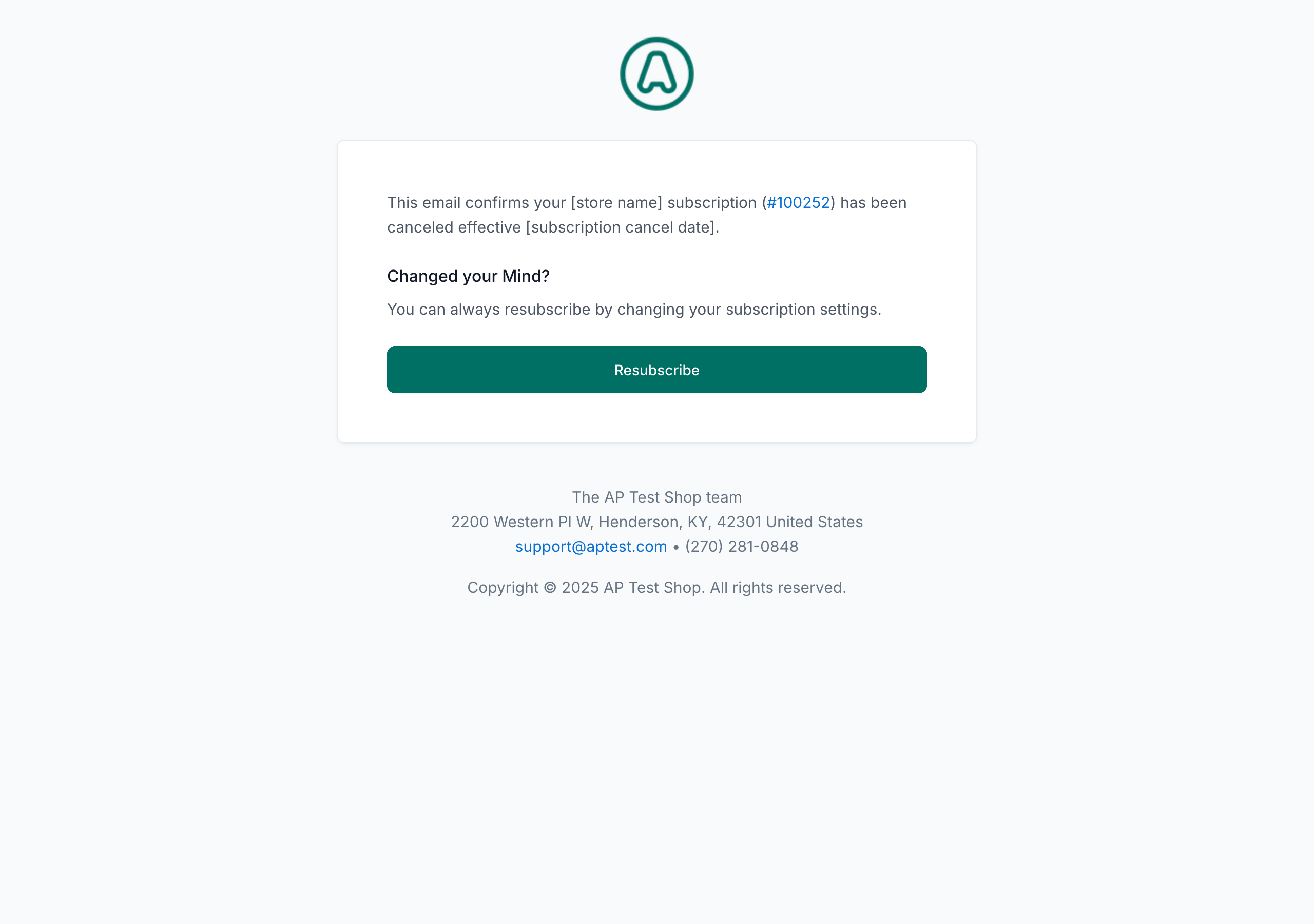
Example from a demo store. Your logo, copy, and line items follow your theme and catalog.
- Trigger: Subscription is canceled by the customer or by the merchant team.
- Example subject: Your subscription has been canceled
- What the customer sees: Cancellation confirmation, timing for when service or shipments end, and reassurance that the recurring order is no longer active.
Important if you use Shop Sync
Enable subscription notifications in NEXT, even if Shopify sends your other emails. These events are managed in NEXT and are not fully represented in Shopify.
Account & support notifications
These examples cover customer account changes and support ticket communication.
Email Changed
User · Sent after a customer changes the email address on their account.
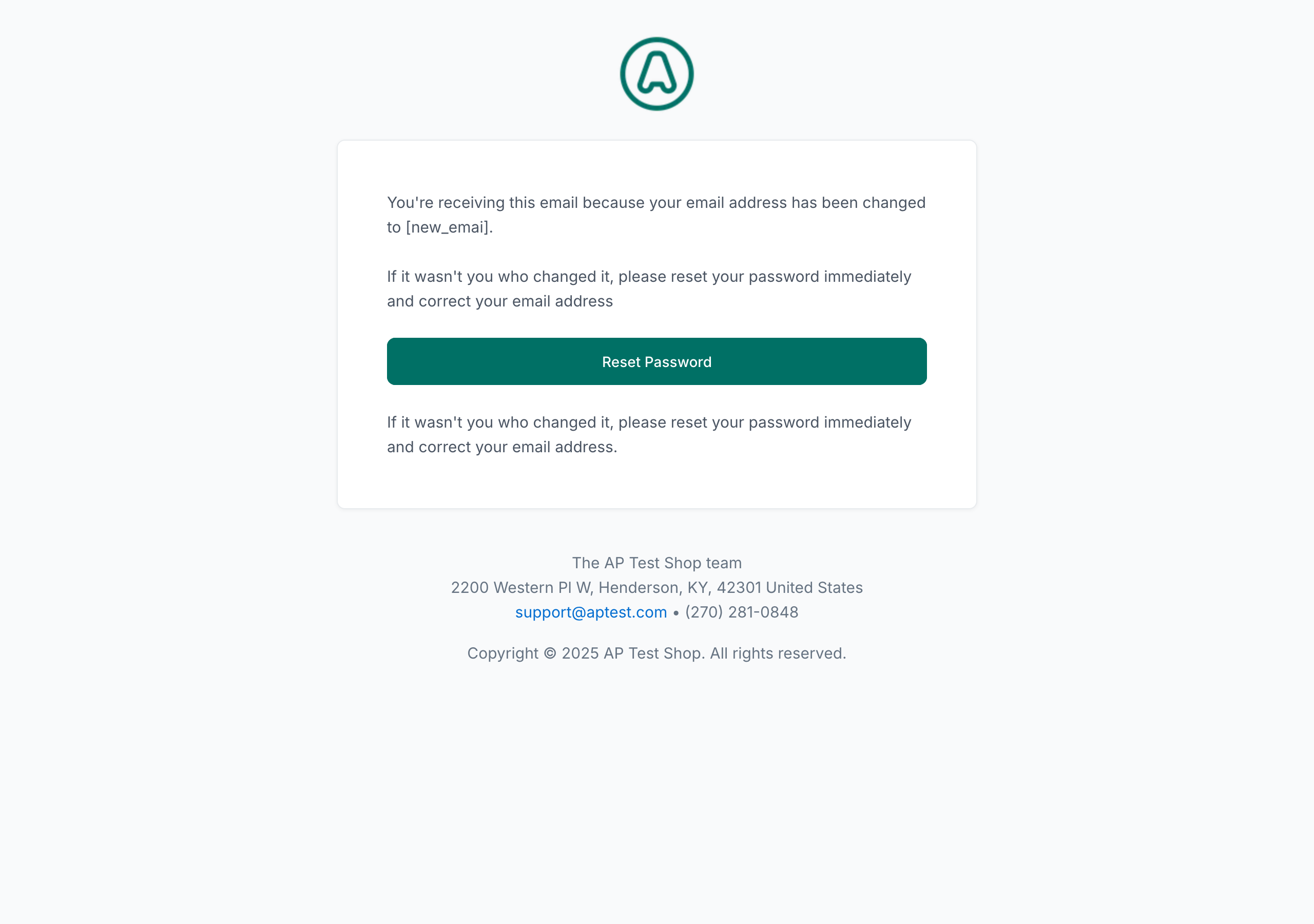
Example from a demo store. Your logo, copy, and line items follow your theme and catalog.
- Trigger: Customer changes their account email.
- Example subject: Your account email has been updated
- What the customer sees: Confirmation that the account email was changed, the updated address, and guidance on what to do if the change was unauthorized.
Ticket Notification
Support · Sent when a support ticket receives a reply.
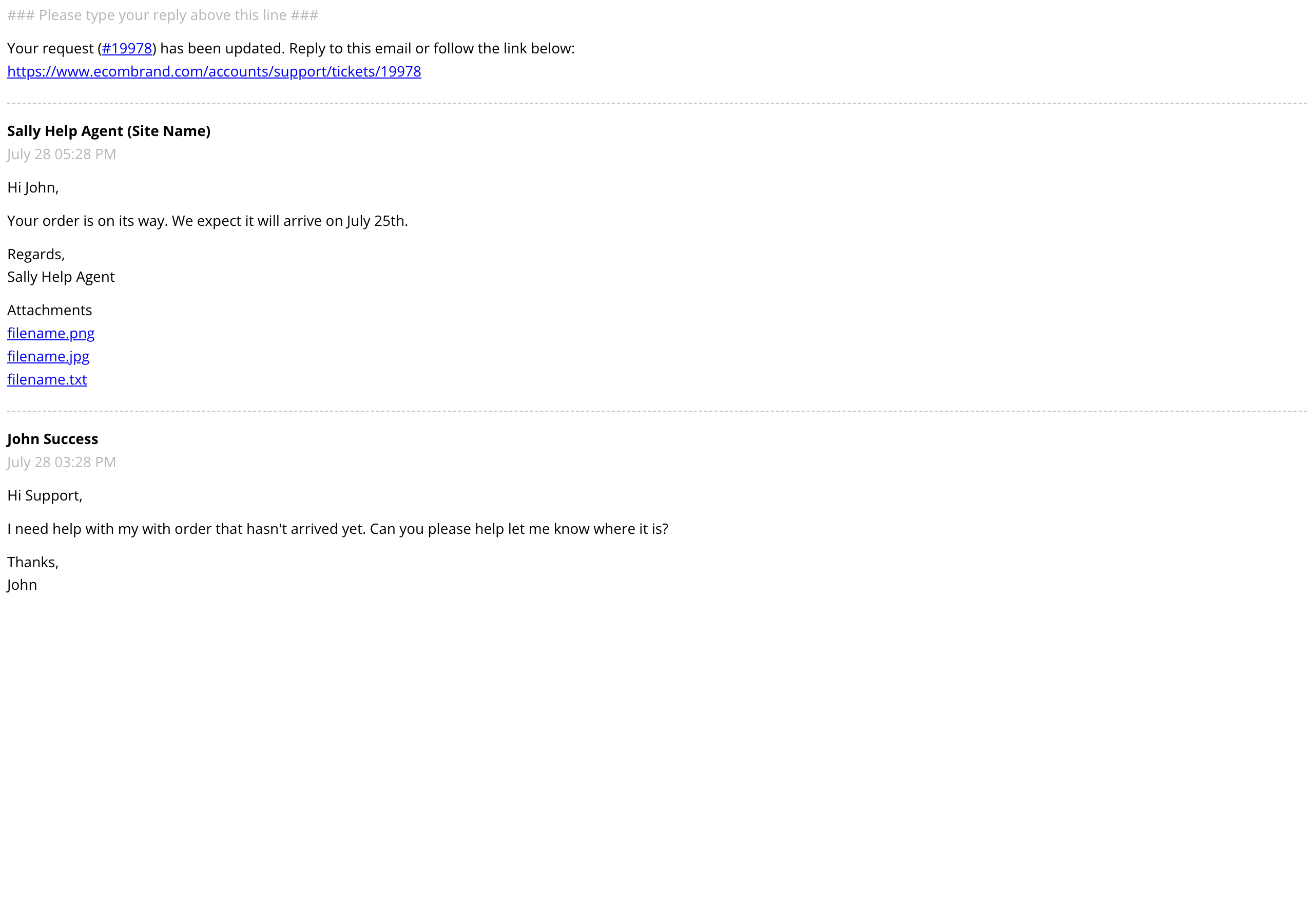
Example from a demo store. Your logo, copy, and line items follow your theme and catalog.
- Trigger: Support ticket reply is posted.
- Example subject: You have a new reply on your support ticket
- What the customer sees: The latest support response, ticket context, and a direct link back to continue the conversation.
Admin Order Notification
Admin · Sent internally to a store admin when a new order is placed.
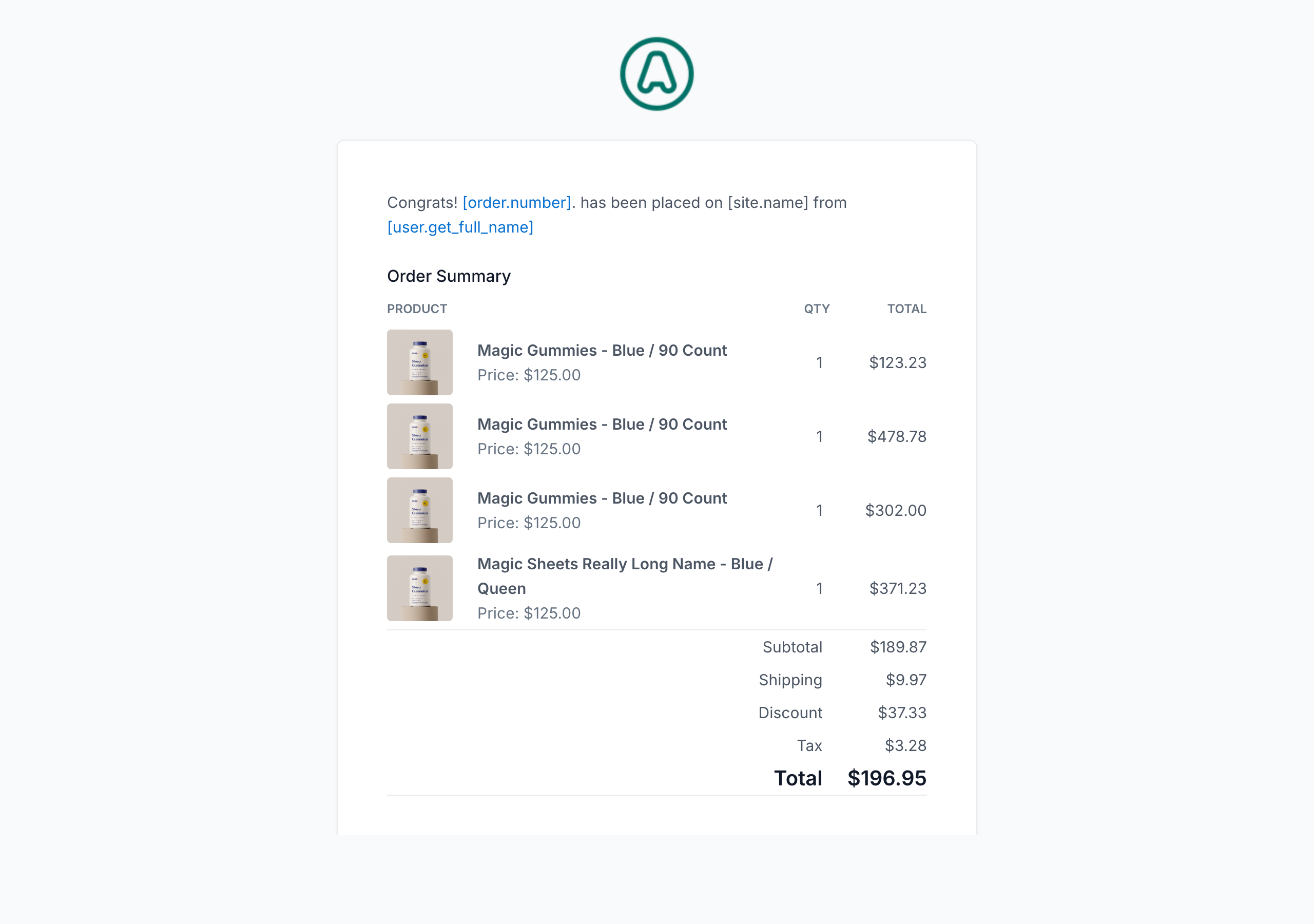
Example from a demo store. Your logo, copy, and line items follow your theme and catalog.
- Trigger: Customer completes checkout and admin notifications are enabled.
- Example subject: New order #NC-10042 from Jane Smith
- What the recipient sees: Customer name, order summary, and fast access to the operational details needed to monitor incoming sales.
Tips for your store
| Topic | What to know |
|---|---|
| Default status | Stores created from September 17, 2026 start with customer notifications disabled. Two notifications stay Active: the Email Changed security notice and the Admin Order Notification, which goes to your team. Enable the others you want before launch. |
| Notification settings | Notifications are configured in Settings → Notifications. Each template has its own Enable or Disable action. |
| From address | Configure a verified sending domain and default from address before you rely on live notification email. |
| Shop Sync | Leave a NEXT notification disabled when Shopify already sends the same email. Send refund and subscription emails from NEXT. |
| Rendering | Actual appearance can vary across Gmail, Outlook, Apple Mail, and other inboxes. |
All notification templates
| Template | Category | Example subject line |
|---|---|---|
| Order Confirmation | Order Notifications | Your order #NC-10042 is confirmed! |
| Complete Order | Order Notifications | Your order #NC-10042 has been processed |
| Order Shipped | Order Notifications | Your order has shipped! Track: 1Z999AA10... |
| Order Out for Delivery Notification | Order Notifications | Your package is out for delivery today |
| Order Delivered Notification | Order Notifications | Your package has been delivered! |
| Order Invoiced | Order Notifications | Configured subject for the Order Invoiced template |
| Return Instruction Notification | Order Notifications | Return instructions for order #NC-10042 |
| Refund Notification | Order Notifications | Your refund of $120.44 has been processed |
| Order Canceled | Order Notifications | Your order #NC-10042 has been canceled |
| Subscription Renewal Notification | Subscription Notifications | Your subscription order is renewing soon |
| Subscription Update Payment Notification | Subscription Notifications | Update your payment method for your subscription |
| Subscription Canceled Notification | Subscription Notifications | Your subscription has been canceled |
| Email Changed | User Notifications | Your account email has been updated |
| Ticket Notification | Support Notifications | You have a new reply on your support ticket |
| Admin Order Notification | Admin Notifications | New order #NC-10042 received |
Key links
Email Rendering Disclaimer
These examples show notification content and layout intent. Actual appearance may vary across email clients such as Gmail, Outlook, and Apple Mail.
NEXT Alerts Setup
To set up NEXT Alerts, give us every statement descriptor and map each one to its Payments account, store, and brand. We also need your legal and trading names, live customer-facing URLs, monitored support contacts, and a setup contact at your business. Once setup is complete, NEXT handles alerts automatically.
Customer service operations
A daily workflow for reviewing orders, handling fulfillment and refunds, and passing complete context when an issue needs help.